
To help protect sensitive data with stronger security controls, G Cloud Backup integrates with Nygma Cloud, a service built on zero-knowledge encryption and encrypted drives.
When you tap Nygma – Secure Folder in the G Cloud Backup app, you are taken to your Nygma account, where files are encrypted on your device before upload and secured using encryption keys known only to you.
This guide explains how to use the Nygma Secure Folder, create encrypted drives, and apply advanced encryption features to safeguard your most confidential data.
How to Open Your Secure Folder
- Make sure your G Cloud app is up-to-date.
- Open the G Cloud app.
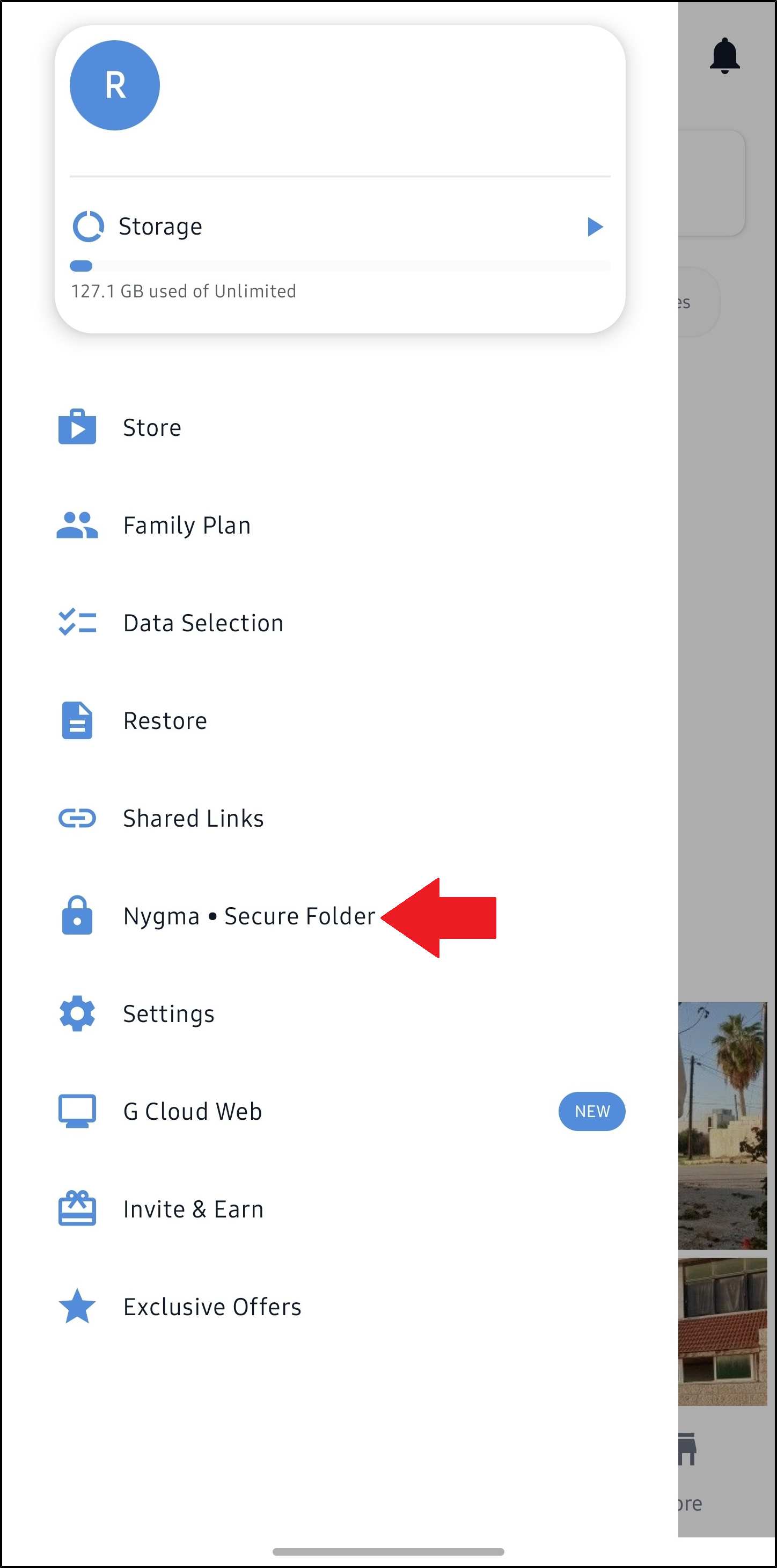
- Tap the menu icon ≡ and select Nygma – Secure Folder.
A Nygma web page opens where you can start creating encrypted drives and securing files.
How to Create Encrypted Drives
A “Drive” in Nygma is a private, encrypted container where you store and organize your sensitive files.
To create an encrypted drive:
- From the Home screen, tap Create Drive.
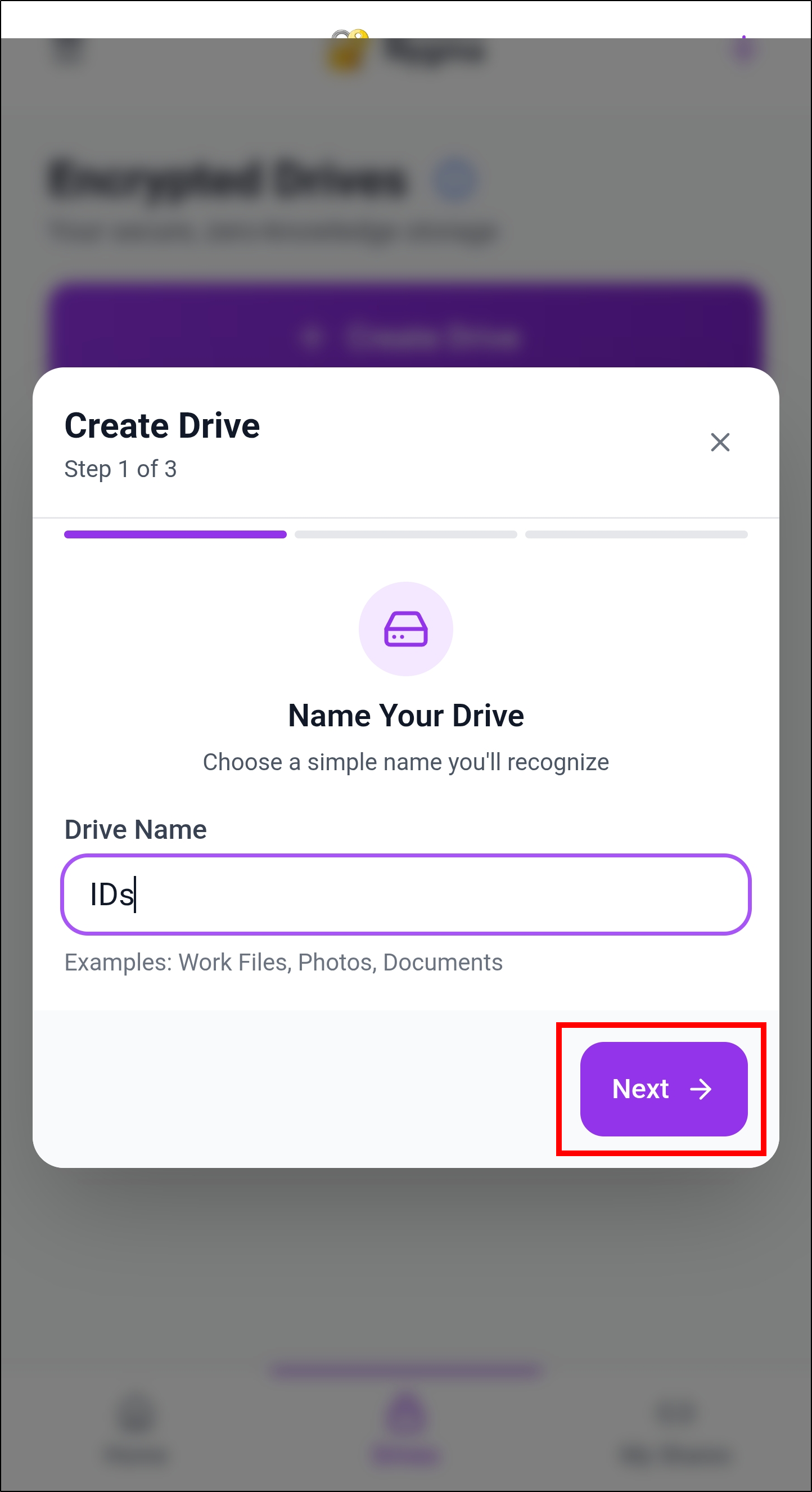
- Choose the drive name and tap Next.
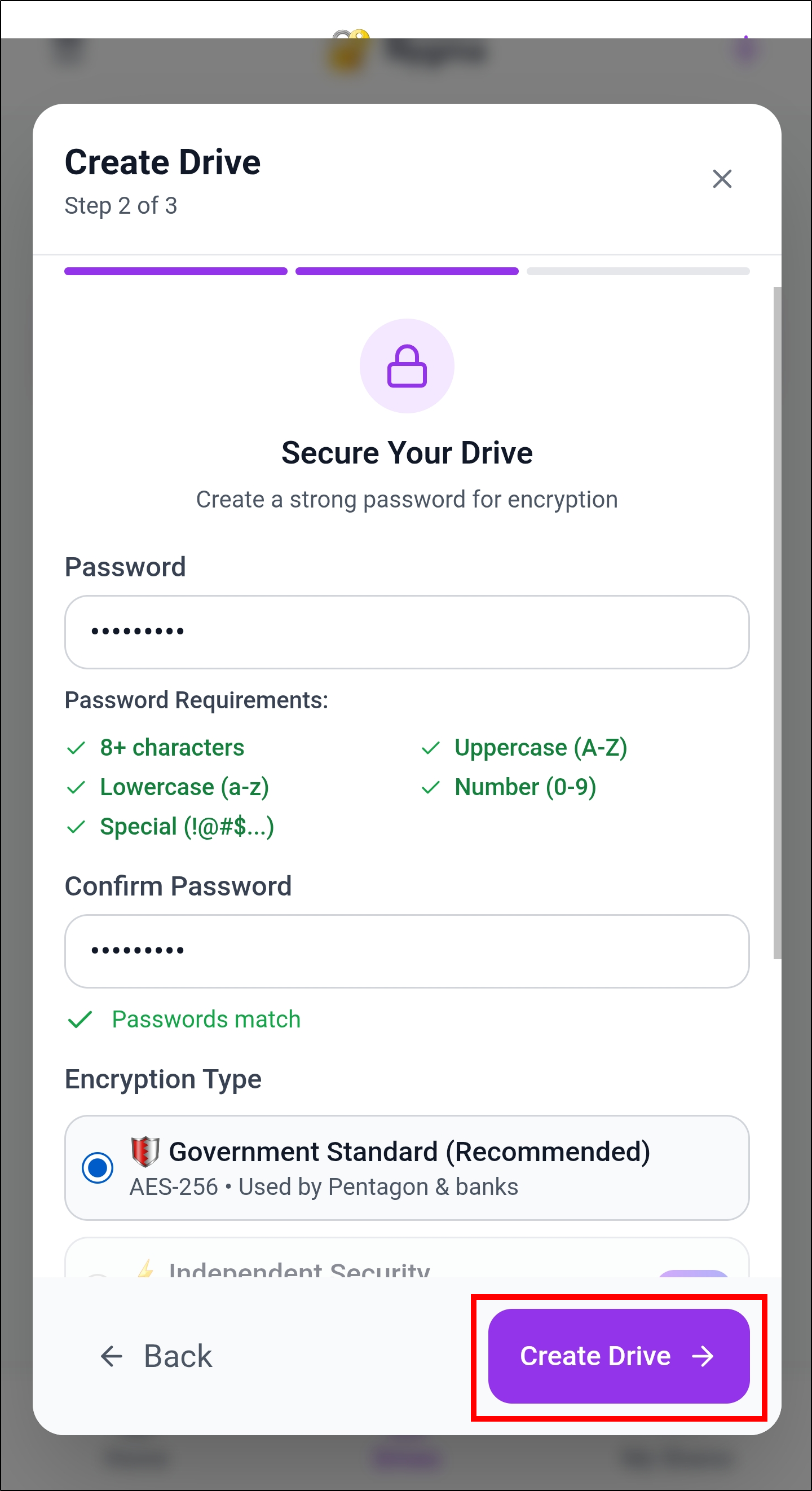
- Secure the drive by creating a strong encryption password and specifying the encryption type. Tap Create Drive to continue.
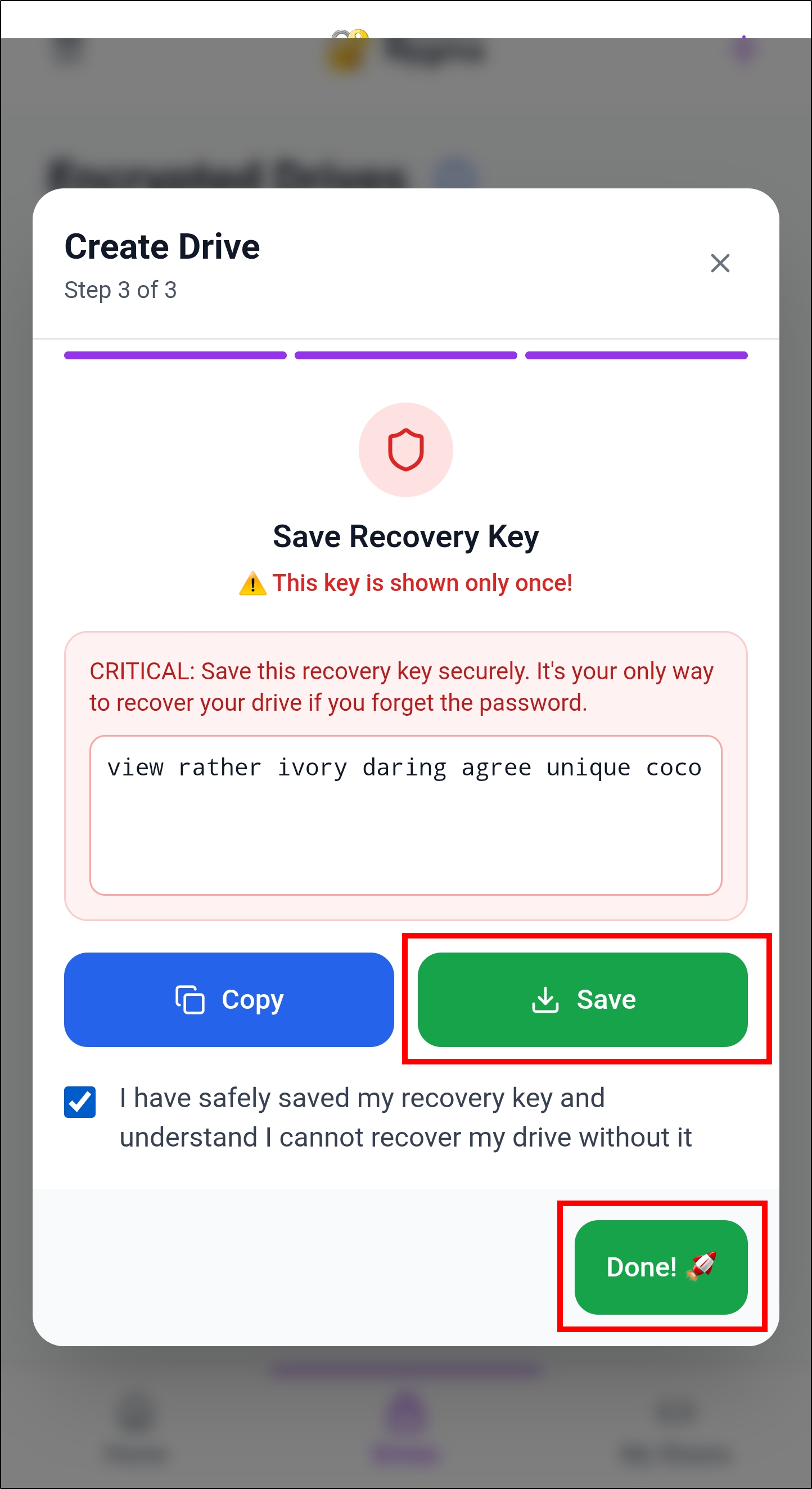
- Save the recovery key and tap Done!.
Your encrypted drive is ready. Unlock it via the created encryption password, and start adding files to it.
🔗 Create an Encrypted Nygma Cloud Drive
🔗 Learn About Zero-Knowledge Encryption
How to Add Data to an Encrypted Drive
Once an encrypted drive is created, you can begin securing your sensitive files by adding data to it. All files added to a Nygma encrypted drive are encrypted on your device before upload, ensuring they remain protected using zero-knowledge encryption.
To add data to an encrypted drive:
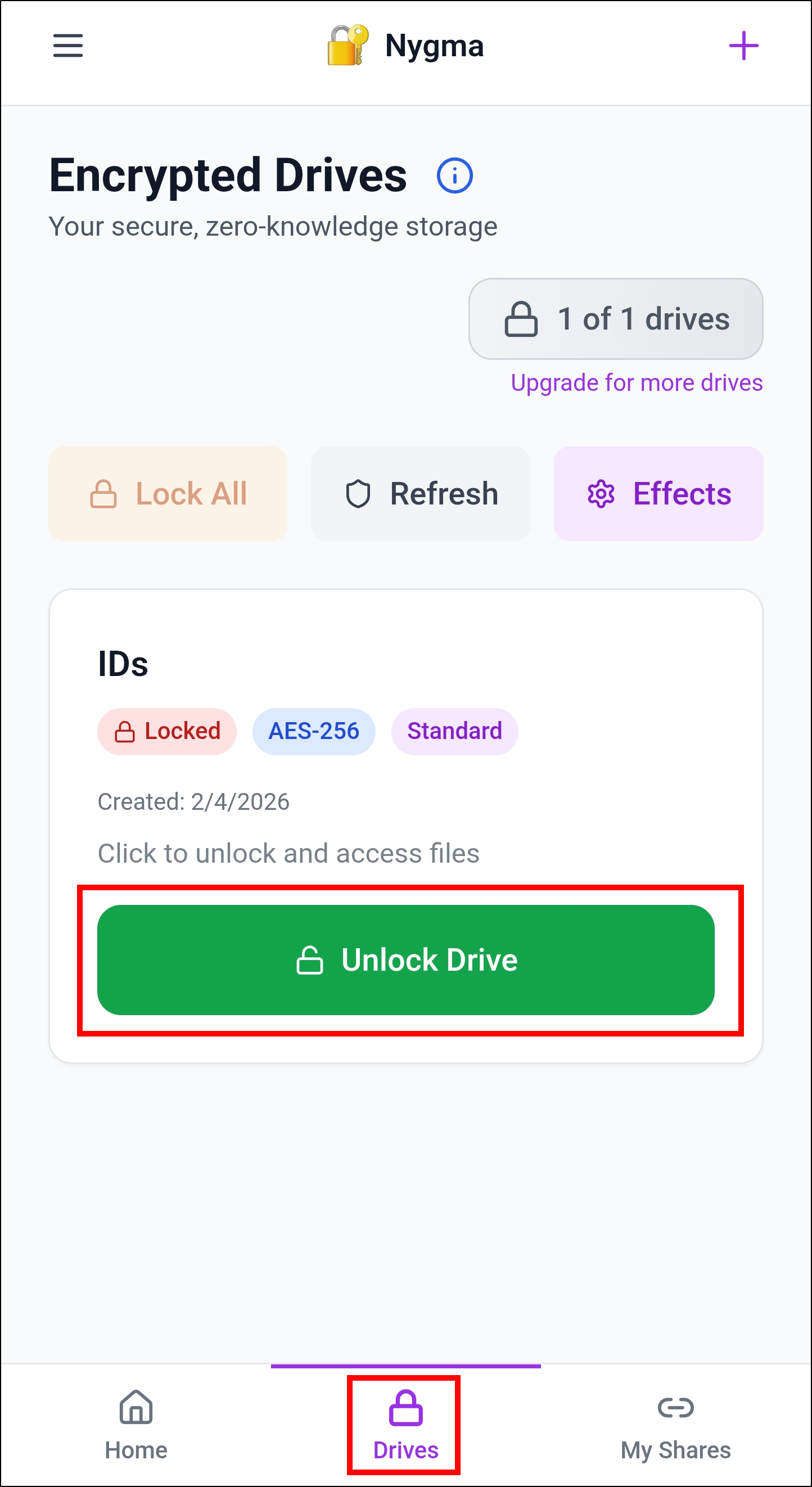
- From the Drives screen, locate the encrypted drive you want to use and tap Unlock Drive.
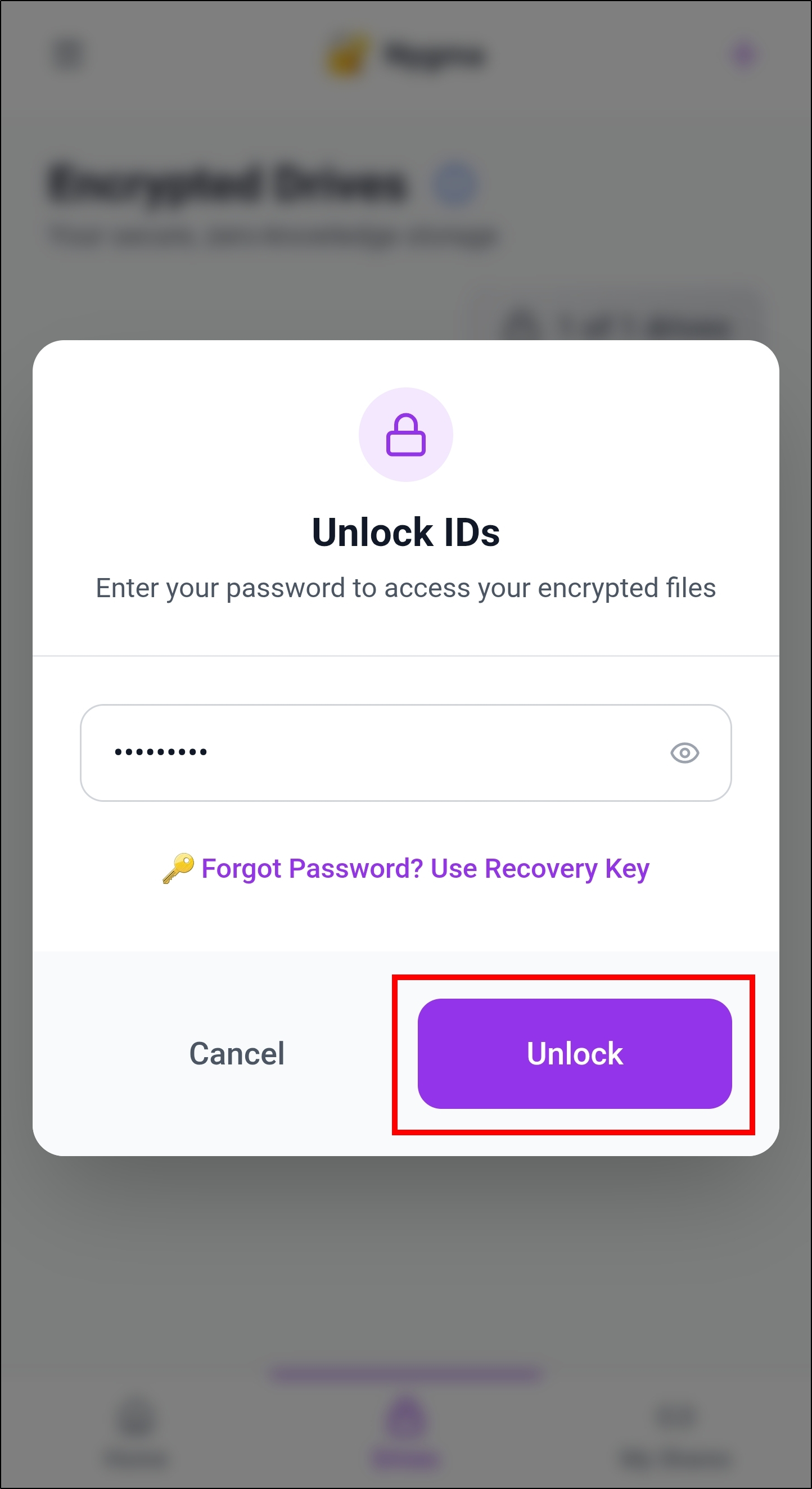
- Enter the encryption password for the selected drive, then tap Unlock.
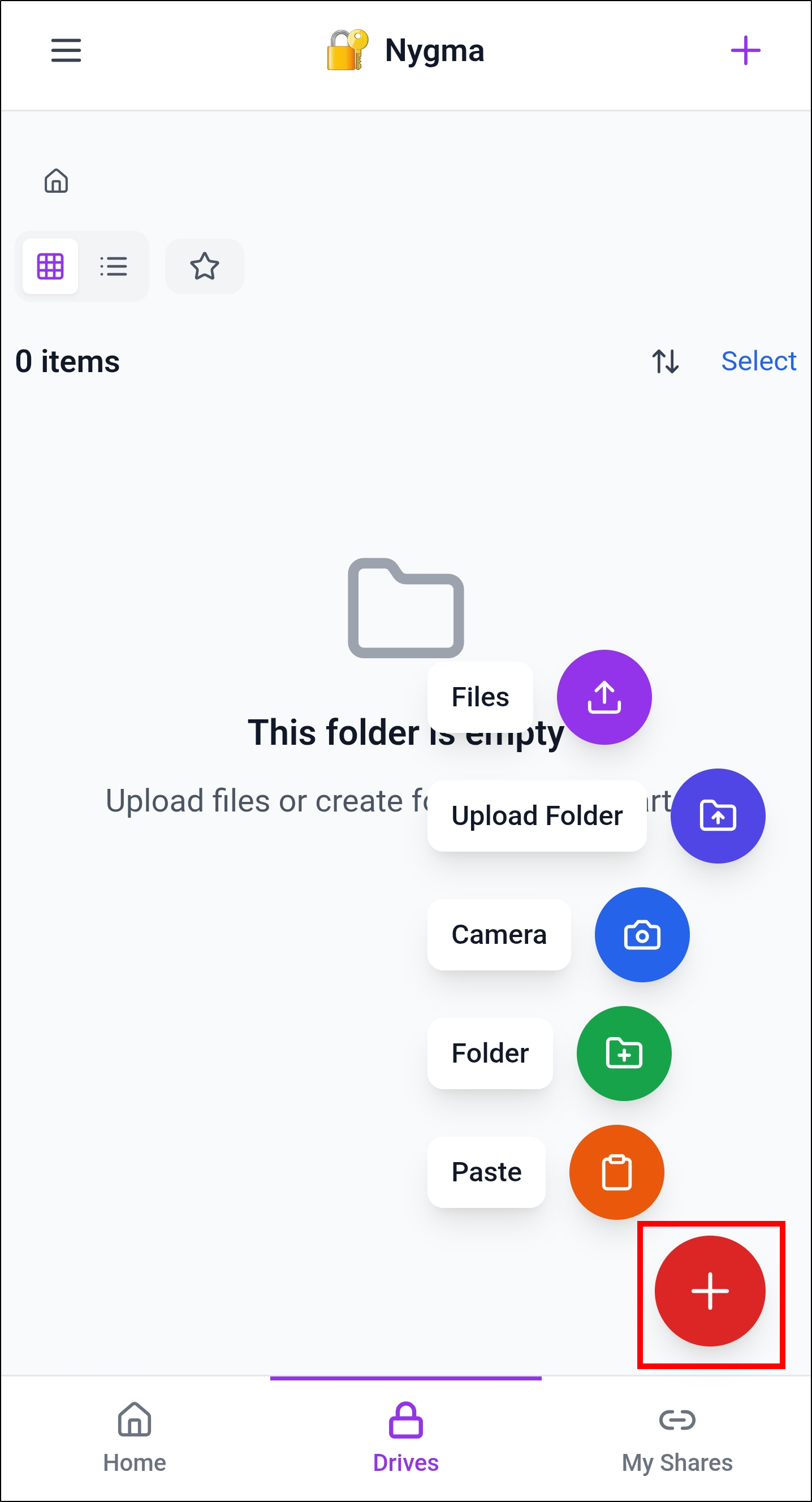
- Inside the unlocked drive, tap the Add (+) icon.
- Select the type of content you want to upload, such as files or folders.
- Wait for the upload process to complete.
The files will be encrypted locally and securely stored in the encrypted drive.
How to Manage Data in an Encrypted Drive
Once a drive is unlocked, you can manage the files stored inside it using a set of secure actions. All actions apply only after the drive is unlocked, ensuring that encrypted content remains inaccessible without the correct encryption password.
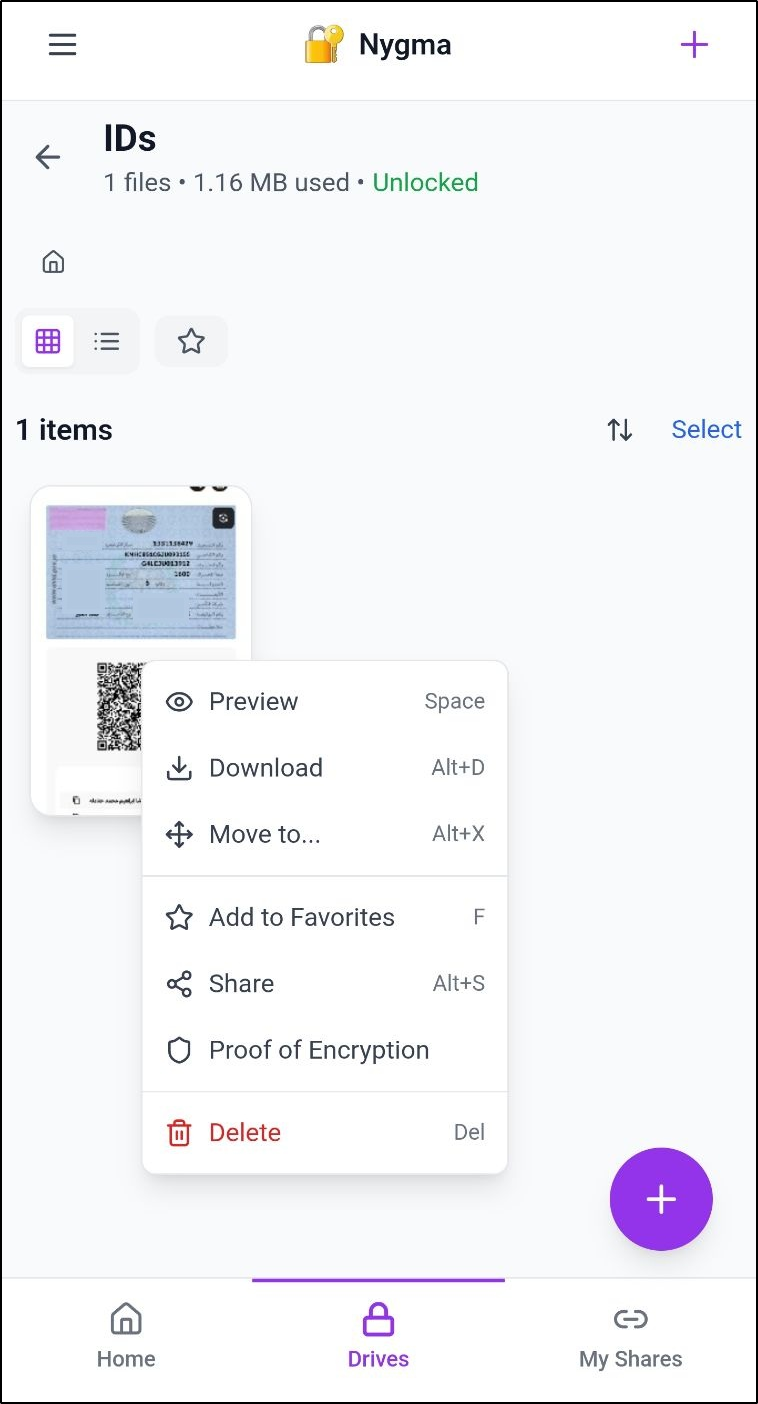
To access file actions, long-press on any file inside an encrypted drive, and utilize the following available options:
- Preview – Opens a secure preview of the file. The file is decrypted temporarily in memory for viewing and is never stored in decrypted form on the server.
- Download – Downloads a decrypted copy of the file to your device. Use this option carefully on shared or untrusted devices.
- Move to… – Moves the file to another folder or encrypted drive within your Nygma account. The file remains encrypted throughout the process.
- Add to Favorites – Marks the file as a favorite for quicker access while the drive is unlocked.
- Share – Creates a secure sharing option for the selected file. Shared files remain protected using Nygma’s encrypted sharing mechanisms, with optional controls such as access limits or expiration (depending on configuration).
- Proof of Encryption – Allows you to verify that the file is encrypted using Nygma’s cryptographic model. This option provides mathematical confirmation that the file is stored in encrypted form and has not been altered.
- Delete – Permanently removes the file from the encrypted drive. Once deleted, the file cannot be recovered.
How to Upgrade Your Nygma Cloud Plan
Each G Cloud user is automatically granted a free Nygma Cloud account, allowing you to start protecting sensitive data using encrypted drives and zero-knowledge encryption. The free plan includes limited encrypted storage and core security features.
If you need additional encrypted storage or want access to advanced Nygma features, you can upgrade your Nygma Cloud plan at any time.
To upgrade your Nygma Cloud plan:
- Open Nygma – Secure Folder from the G Cloud app menu.
- On the Nygma Home screen, tap View Plans.
- Review the available subscription plans and their included storage and features.
- Select the plan that best fits your needs and complete the subscription process.
Once the upgrade is completed, the additional encrypted storage and plan features will be applied immediately to your Nygma account.
🔗 View available plans and pricing
Available Security Options
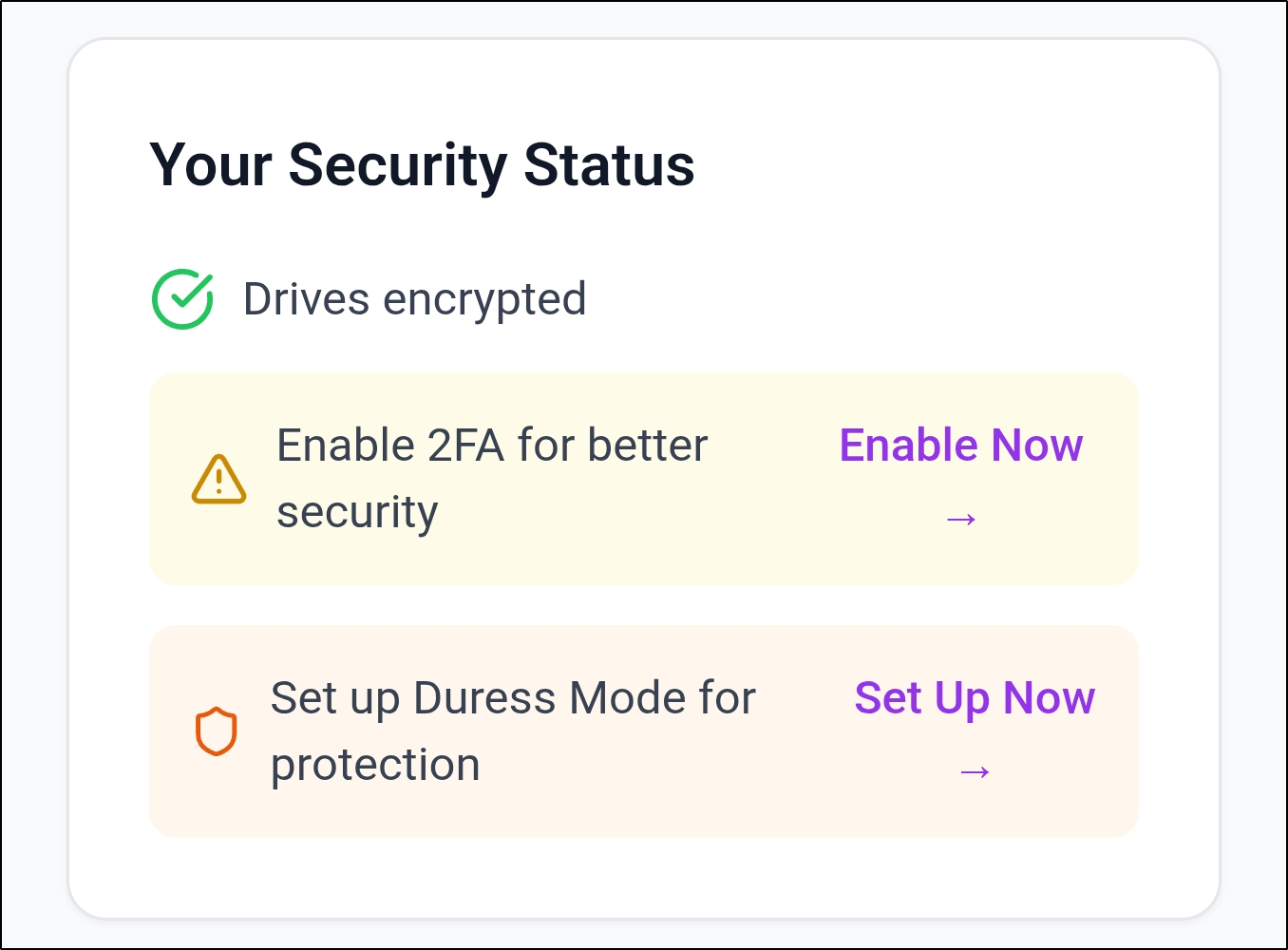
The Your Security Status card on the Home screen of your Nygma account provides a quick overview of how well your data is protected. It highlights whether your encrypted drives are properly secured and draws attention to additional security measures that can further strengthen your account protection.
This section helps you:
-
Confirm that at least one encrypted drive is created and secured
- Identify recommended security actions that are not yet enabled
-
Quickly access advanced protection features such as Two-Factor Authentication (2FA) and Duress Mode.
Invite People to Join Nygma Cloud
Nygma Cloud offers an exciting opportunity for users to expand their cloud storage capacity by inviting friends and family members to join the platform. With the Nygma Cloud invitation program, any user can now refer five (5) other persons to enjoy the benefits of Nygma Cloud. For every successful invitation, the inviter will earn an additional 800 MB of cloud storage—a rewarding way to share the benefits of a secure data cloud with loved ones while increasing personal storage space.
🔗 Invitation Program of Nygma Cloud