This article outlines the various permissions required by the G Cloud to function efficiently and provide users with its full range of features. These permissions enable the app to interact with your device’s core functionalities such as SMS, phone calls, contacts, storage, and network access. By understanding these permissions, users can gain insights into how the app operates and ensure its compatibility with their preferences. Below, we detail each permission and its purpose to promote transparency and user confidence.
G Cloud App Permissions
SMS
- Read your text messages (SMS or MMS)
- Send and view SMS messages
- Receive text messages (SMS)
Phone
- Read phone status and identity
Storage
- Read the contents of your shared storage
Contacts
- Read your contacts
- Modify your contacts
Call logs
- Write call logs
- Read call logs
Other
- Advertising ID Permissions
- Run foreground service
- Run at startup
- View network connections
- Ask to ignore battery optimizations
- Prevent phone from sleeping
- Receive data from Internet
- Read Google service configuration
- Control vibration
- Google Play billing service
- android.permission.SCHEDULE_EXACT_ALARM
- Have full network access
- Play Install Referral API
How to Check Backup Permissions
- Ensure your G Cloud app is updated to the latest version on your Android or iOS device.
- Open the G Cloud app.
- Tap the menu ≡ icon at the upper-left corner and select Settings.
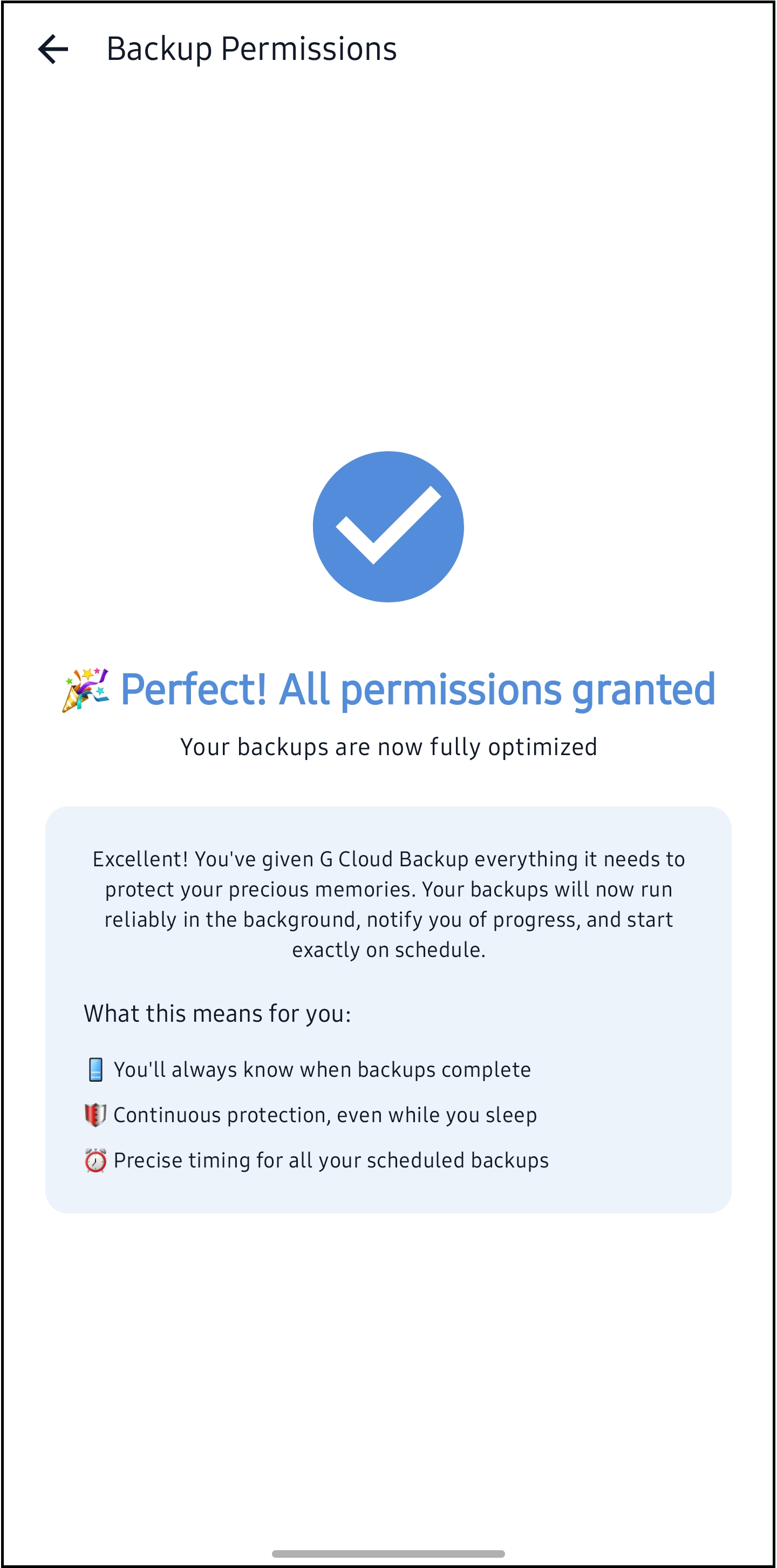
- Tap Backup Permissions.
- In the opened screen, make sure all needed permissions are granted to avoid backup interruptions.