
You can access your G Cloud account through the G Cloud mobile app on either an Android or iOS device or via the G Cloud website.
Logging in to Your G Cloud Account on an Android Device
Step 1. Download and install the G Cloud Backup app from the Google Play Store.
Step 2. Open the G Cloud app.
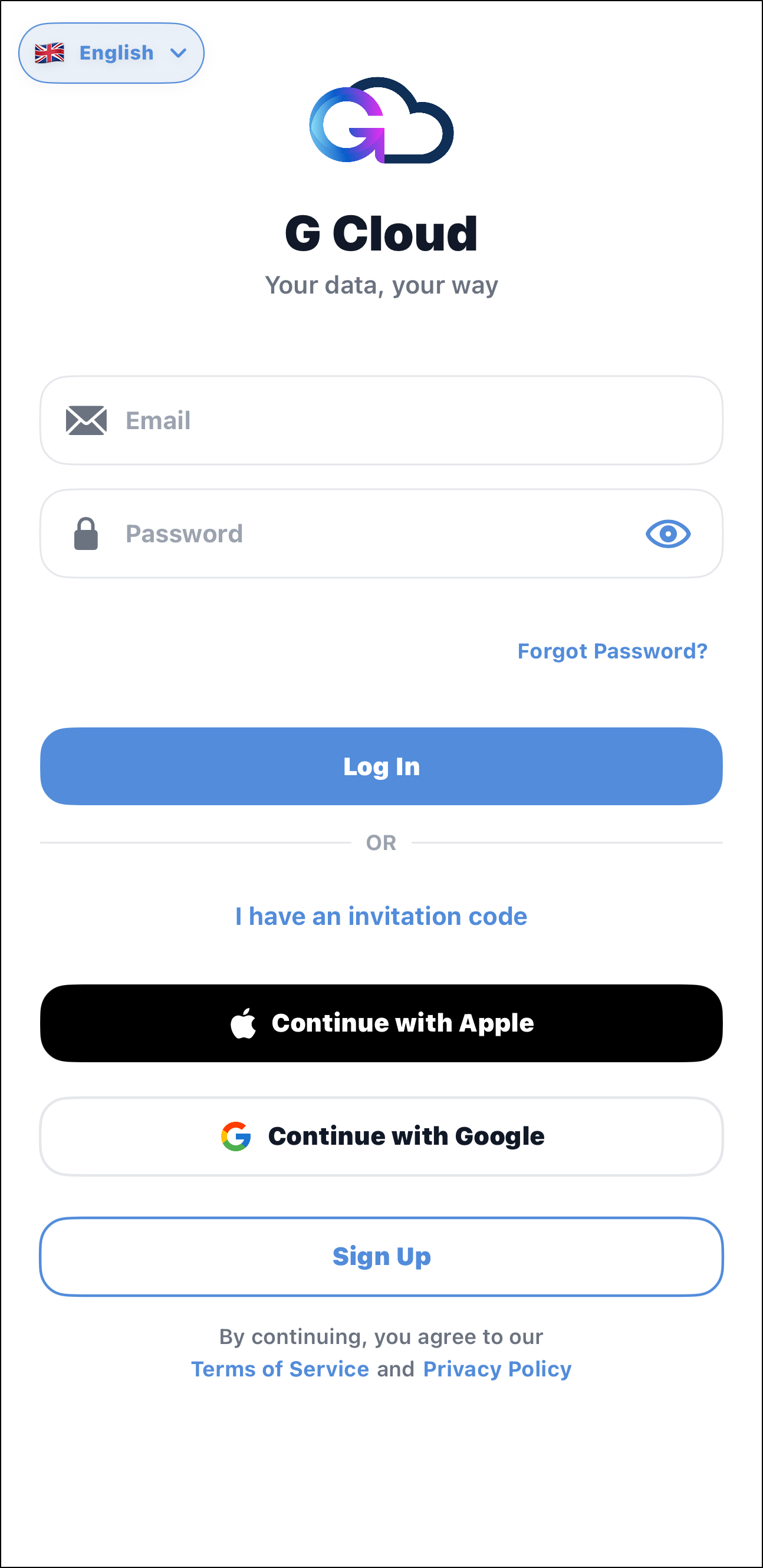
Step 3. Log in to your G Cloud account. There are three (3) login methods available:
- If your G Cloud account was originally created with an email and password, enter your credentials in the respective fields and tap Log In. Utilize the “Forgot Password?” option there if you do not remember your G Cloud login password.
- If your account was registered using your Google ID, tap Continue with Google.
- If your account was registered using your Apple ID, tap Continue with Apple.
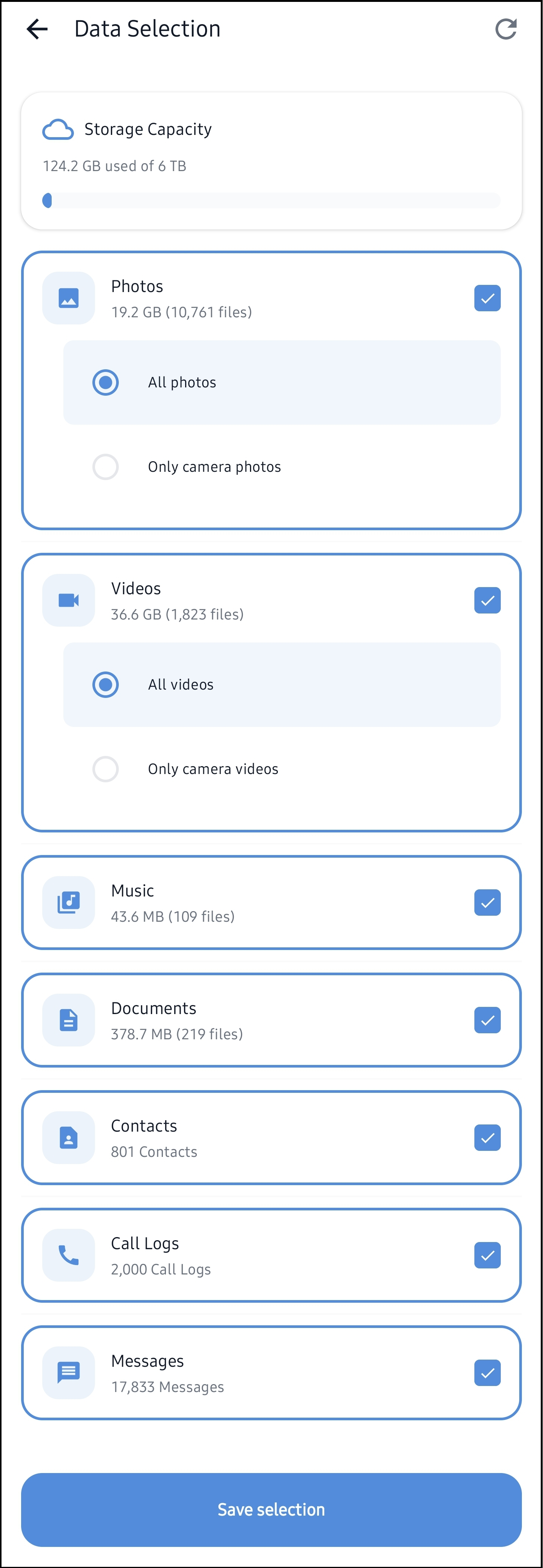
Step 4. Select the data you wish to back up and tap Save selection.
Logging in to Your G Cloud Account on an iOS Device
Step 1. Download and install the G Cloud Backup app from the App Store.
Step 2. Open the G Cloud app.
Step 3. Log in to your G Cloud account. There are three (33) login methods available:
- If your G Cloud account was originally created with an email and password, enter your credentials in the respective fields and tap Log In. Utilize the “Forgot Password?” option there if you do not remember your G Cloud login password.
- If your account was registered using your Google ID, tap Continue with Google.
- If your account was registered using your Apple ID, tap Continue with Apple.
Step 4. The G Cloud app will ask you to grant permissions for backups to work properly. Tap Get Started to proceed.
Step 5. Grant the G Cloud app the necessary permissions, then tap Continue.

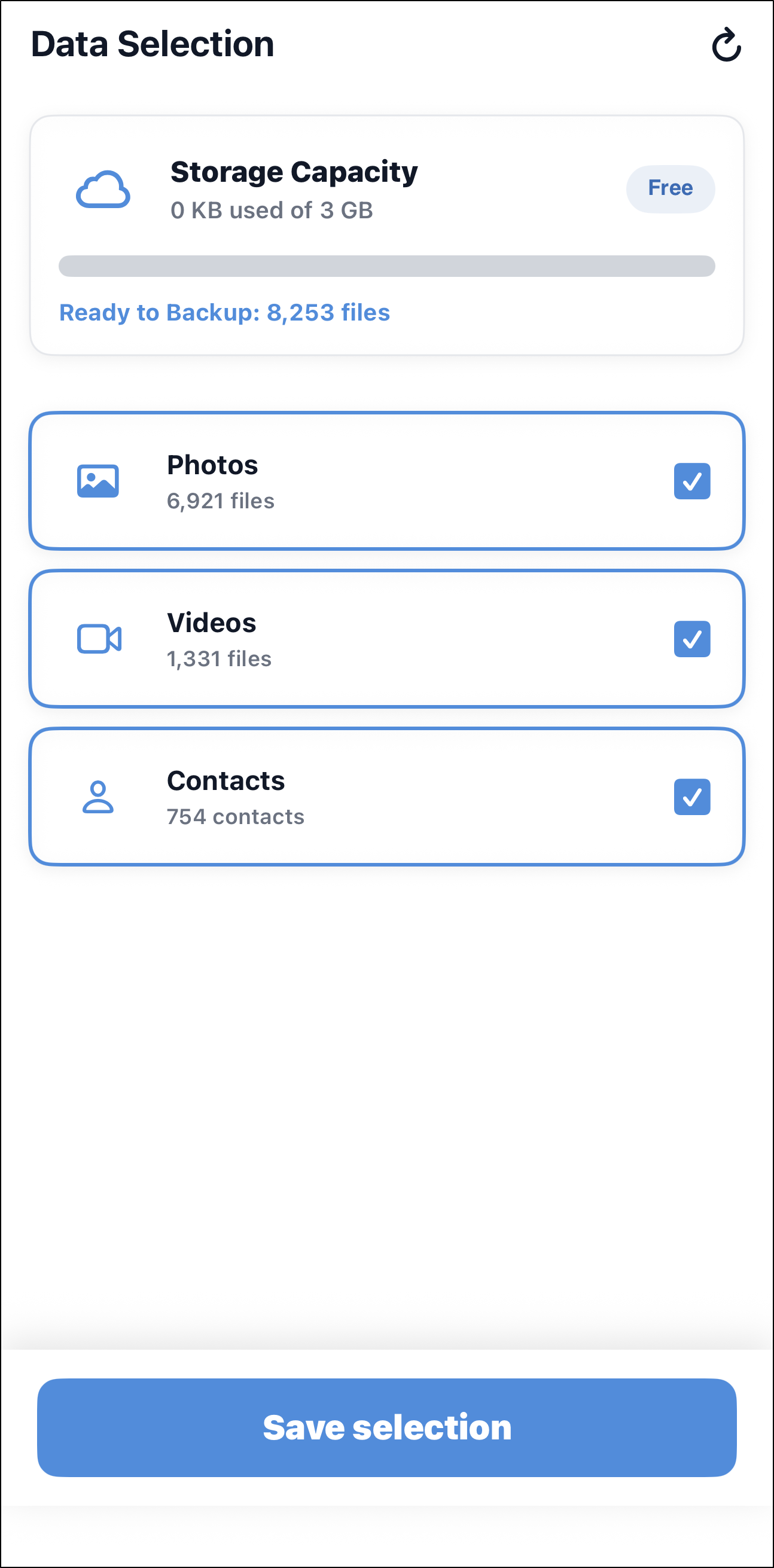
Step 6. Select the data you want to back up, then tap Save selection when done.
Logging in to Your G Cloud Account via the Website
- Visit the G Cloud login page here.
- Choose your login method (email/password, Google ID, or Apple ID) based on how you registered your G Cloud account.