G Cloud accounts can be created through multiple methods: Google ID, Apple ID, or by using an email/password combination. If you signed up for G Cloud using an email/password combination and have forgotten your login password, you can easily reset it by following a few simple steps. This guide will walk you through the process of recovering access to your account.
Method 1. Via the G Cloud Mobile App
1. Install the G Cloud app on your smartphone, whether Android or iOS.
2. Open the G Cloud app and tap the Forgot password? option.

5. Type your G Cloud login email in the blank field and click Send Verification Code.
6. An email from no-reply@gcloudbackup.com with a verification code will be sent to your G Cloud login email address. This code is valid for only 1 hour.
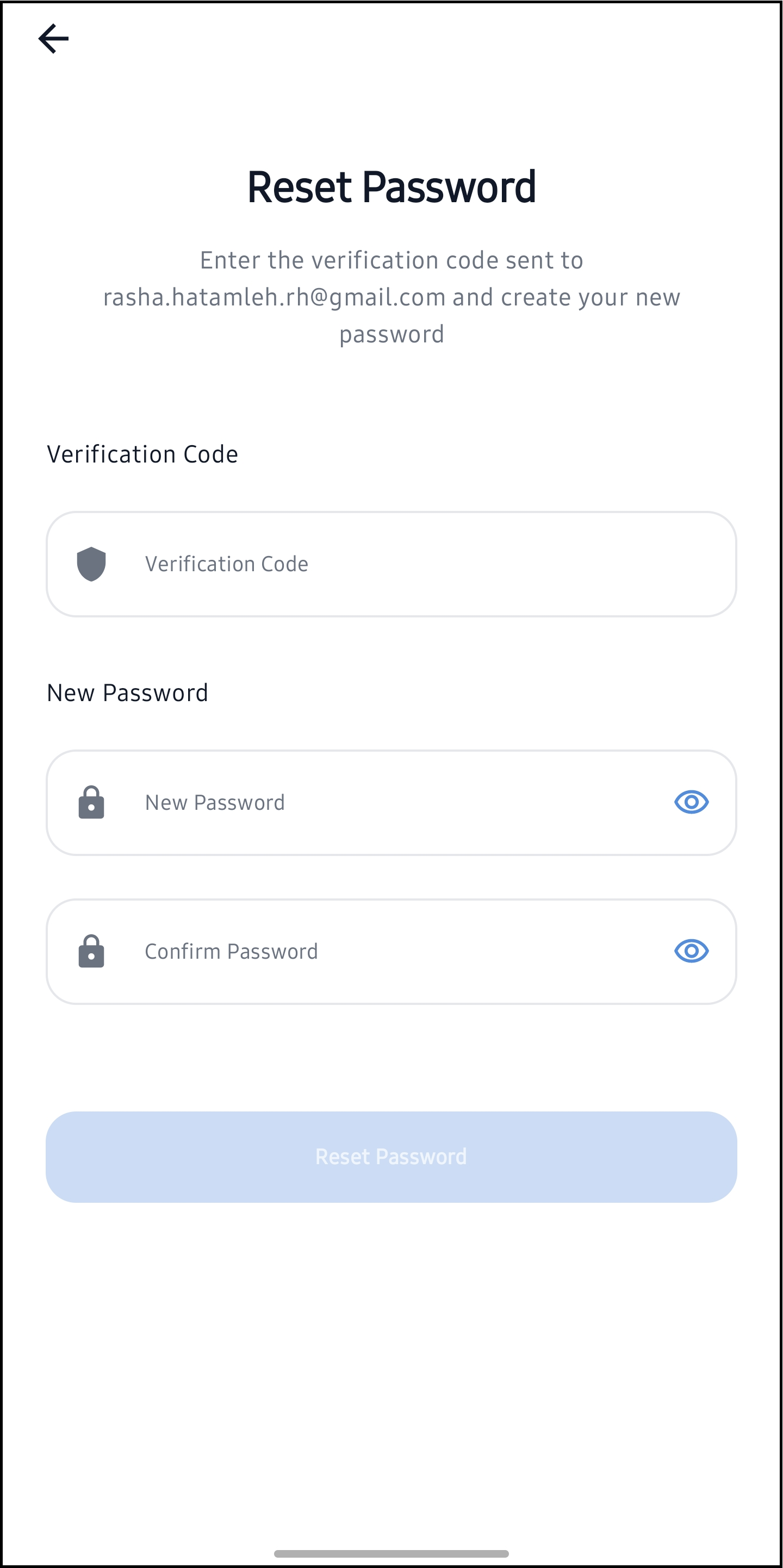
7. In the opened Reset Password screen of the G Cloud app, enter the received verification code, a new password, confirm it, and tap the Reset Password button.
Method 2. Via the G Cloud Website
1. Visit the G Cloud “Reset Password” webpage here.
2. Type your G Cloud login email in the blank field and click Send Verification Code.
3. An email from no-reply@gcloudbackup.com with a verification code will be sent to your G Cloud login email address.
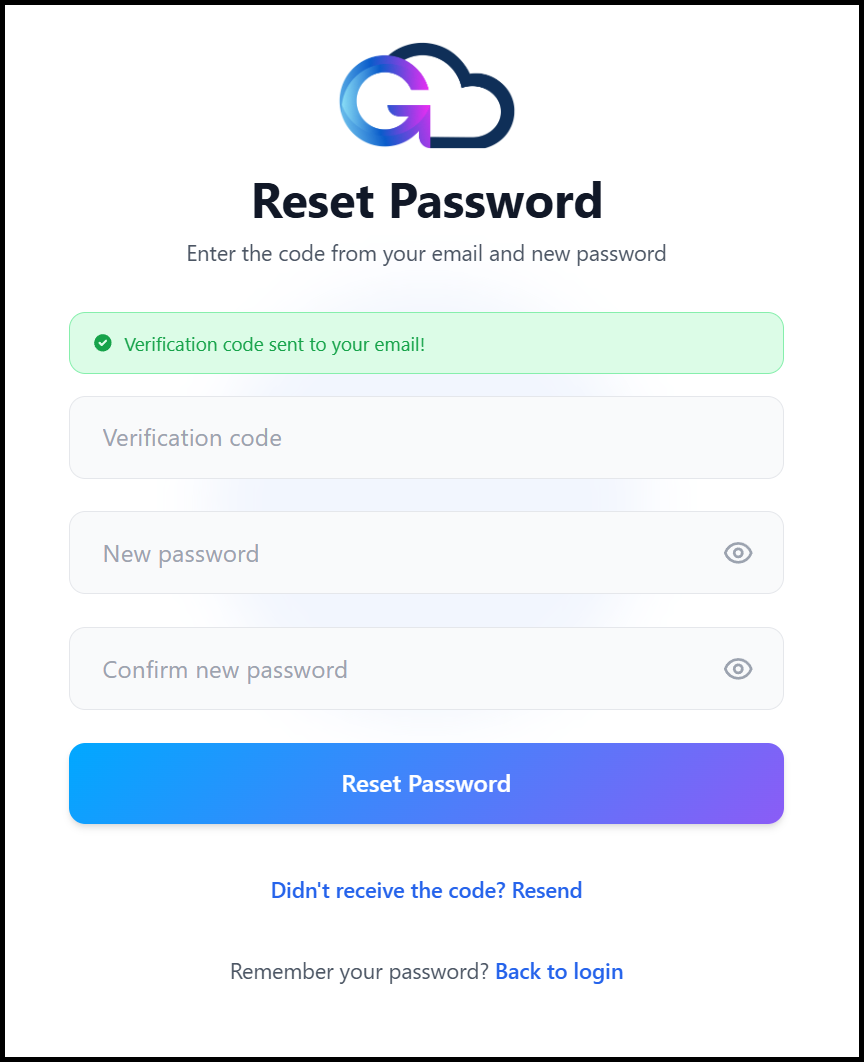
4. On the page that opens, enter the verification code you just received by email, a new password, confirm it, and click Reset Password.