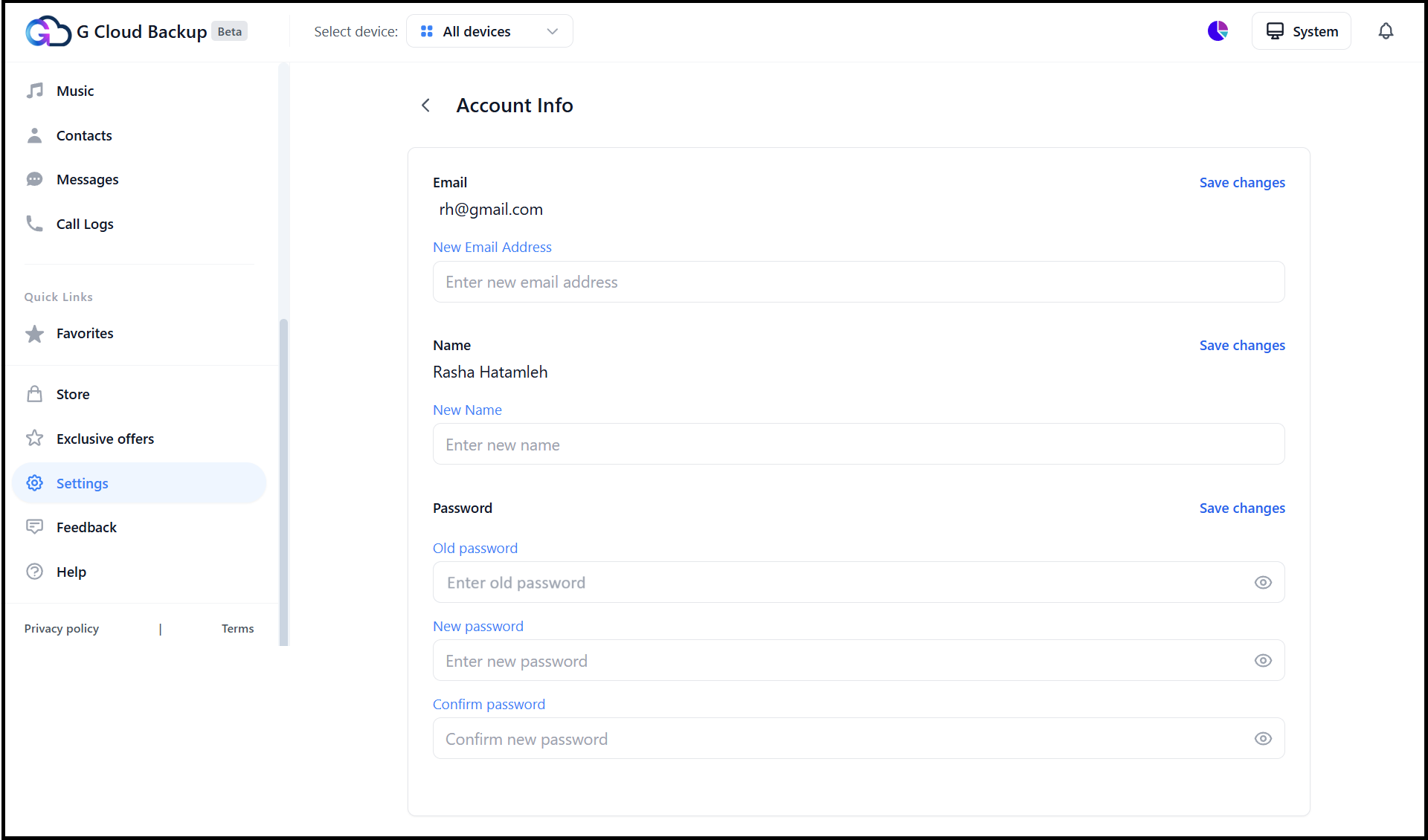
You can update your G Cloud account information at any time to better reflect your preferences. Available settings include:
- Your displayed name
- Login email address
- Login Password
Accounts created through Google or Apple ID do not have options to edit login email or password.
How to Edit G Cloud Account Settings
Step 1. Access the “Account Info” Page
- Visit the G Cloud login page, enter your login credentials, and Sign In.
- From the left-side panel, select Settings.
- From the Settings page, select Account Info.
Step 2. Change Login Email
To change your G Cloud login email:
- Type the new email address in the New Email Address field.
- Click Save Changes.
Ensure the new email is accessible and active.
Step 3. Change Name
To update your displayed name:
- Type the new name in the New Name field.
- Click Save Changes.
Step 4. Change Login Password
To change your login password:
- Enter the old password, then the new one, confirm it, and click Save Changes.
If you have forgotten your G Cloud login password, follow the password reset steps here
Step 5: Finalize Changes
After making any updates, close and reopen the G Cloud app on your device(s) to apply the changes immediately.